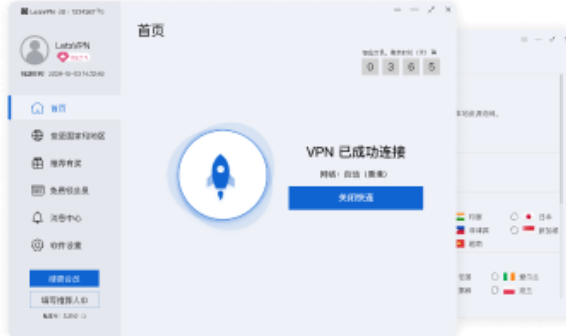
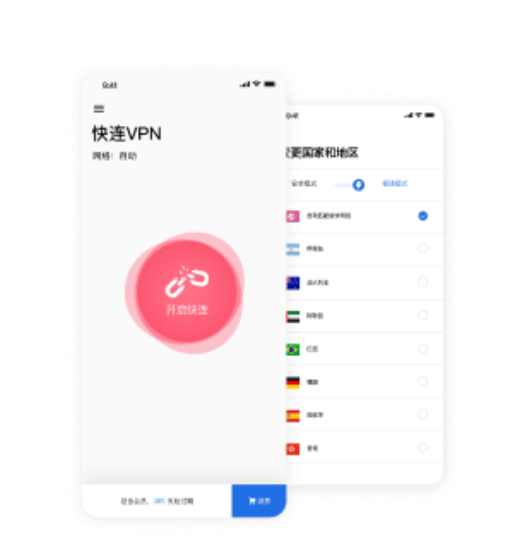
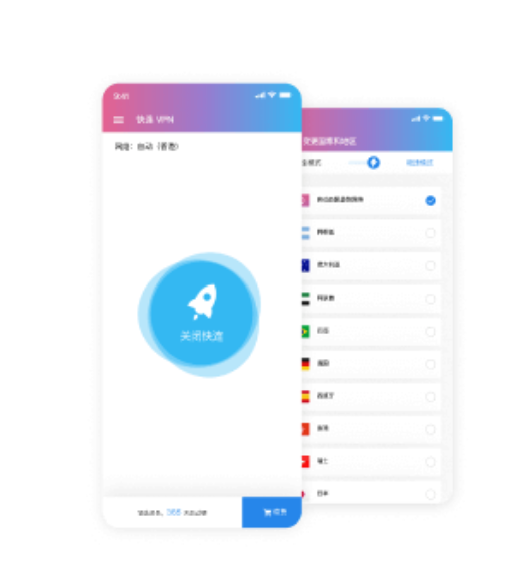
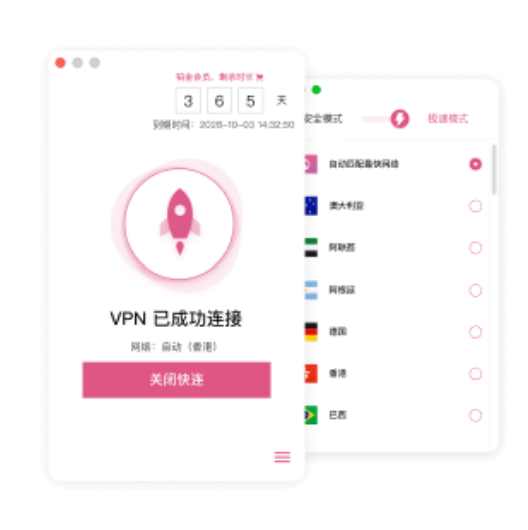
One-Tap Connection
Start a VPN connection directly from the client without entering server addresses, ports or other network details first. The setup stays focused on connecting rather than configuring.
Smart connection · Multi-device · Encrypted traffic
LetsVPN is a cross-platform VPN for Windows, macOS, Android and iOS. The client selects a usable route based on network conditions, reducing the need to switch servers or configure connection details manually. Once connected, VPN traffic is encrypted between the device and the service, making LetsVPN practical for public Wi-Fi, travel, remote work and everyday use across multiple devices.
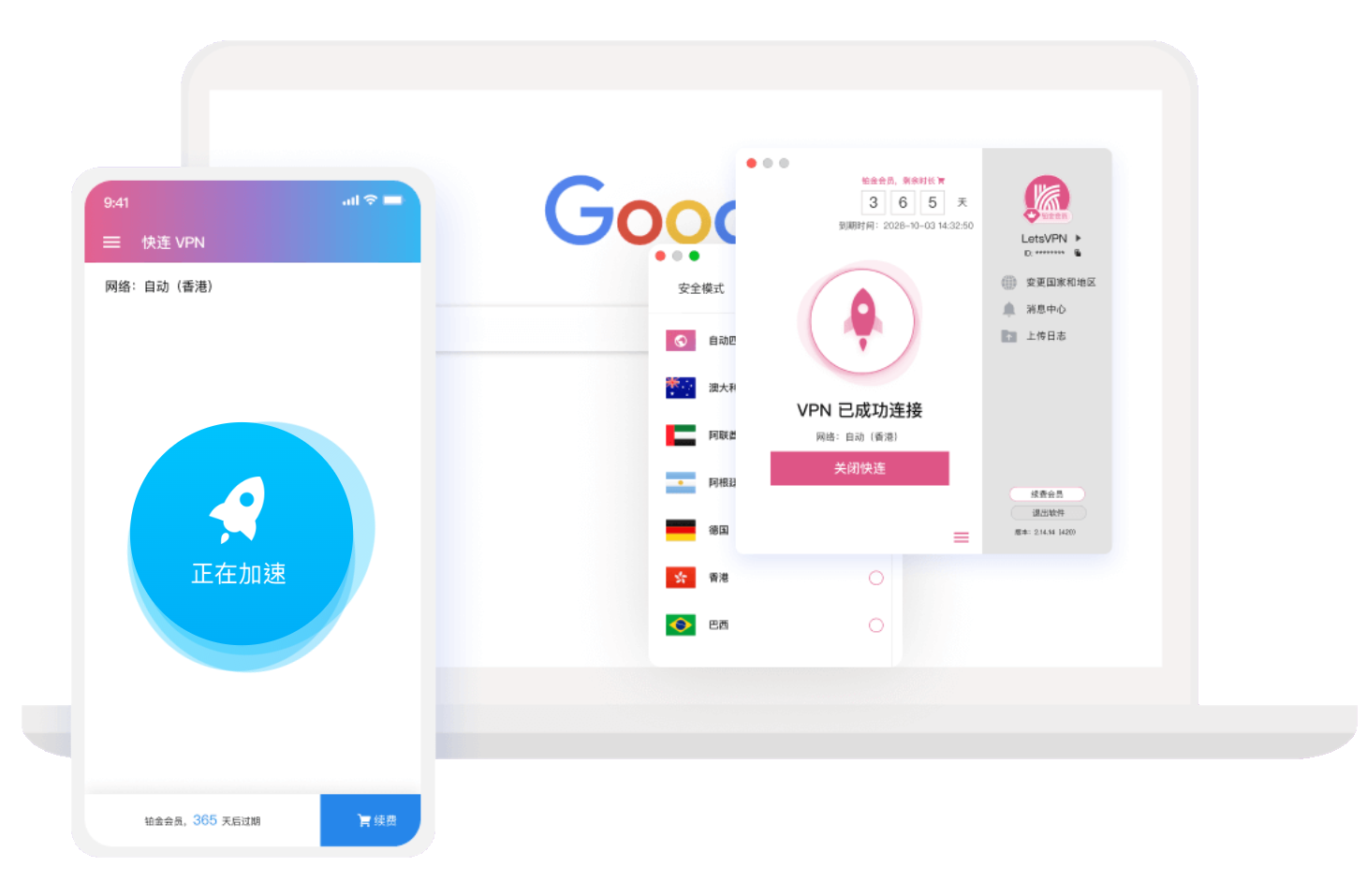
When a connection starts, LetsVPN selects a route and network node based on the device’s network conditions, then establishes the VPN tunnel. There is no need to test servers one by one or enter protocol and server details before connecting. Performance can still change with local network quality, route load and the destination service.



LetsVPN brings routing, connection controls, device support and encrypted transport into one client experience. Desktop and mobile versions follow the same basic flow, making it easier to move between networks without rebuilding the connection setup each time.
Start a VPN connection directly from the client without entering server addresses, ports or other network details first. The setup stays focused on connecting rather than configuring.

LetsVPN selects a network node and route around the conditions it sees at connection time. This reduces repeated server testing while keeping route changes inside the client experience.

Once connected, LetsVPN can carry traffic for web browsing, communication tools, media services and remote-work applications. Individual websites and apps may still respond differently because of regional rules, account settings or their own network policies.

LetsVPN is available on major desktop and mobile systems, so the same connection model can follow users between a computer, phone and tablet.

The VPN tunnel encrypts traffic between the device and the service, which is especially useful on shared or unfamiliar networks. Account security, system updates, HTTPS and protection against phishing still remain separate parts of online safety.
Different situations place different demands on a VPN. Public Wi-Fi puts more emphasis on encrypted transport, travel and remote work depend on stable reconnection, while multi-device use depends on keeping the same connection flow across desktop and mobile systems.
Starting a connectionChanging network conditionsPublic Wi-Fi Travel and remote workMultiple devicesWebsites and apps
Privacy · Connection Security
LetsVPN separates browsing activity from connection diagnostics. Website visits, DNS queries and message content are not used as part of the VPN service, while diagnostic information can be shared when a user submits a connection problem for support. The VPN tunnel protects network traffic in transit, but passwords, two-factor authentication, system updates and safe browsing still need to be handled separately.
 Simple connection controls
 Browsing activity kept separate from diagnostics
 Encrypted VPN traffic
 Protection on shared and unfamiliar networks
 Check the installer source before setup
A VPN connection is shaped by more than one speed test. Initial connection time, long-session stability, network changes, device switching and access to the services you actually use all matter in day-to-day use.
Connection time can vary by network and route. What matters in regular use is whether LetsVPN can establish a usable connection without repeated manual server changes.

Long sessions reveal whether the VPN remains connected during browsing, calls, downloads and media use, especially when the underlying network changes.

Latency affects calls, remote work and interactive services even when download speed looks strong, so response time is part of the overall connection quality.

Desktop and mobile clients should keep the connection flow familiar when moving between a computer, phone or tablet.

Websites and apps can respond differently depending on region, account settings and their own network policies, even when the VPN connection itself is active.

Moving between Wi-Fi, mobile data and other networks tests how smoothly the client can restore a usable VPN connection after the route changes.

LetsVPN is available for Windows, macOS, Android and iOS. Choose the version for your device, install the client and continue with the same account and connection flow on desktop or mobile.
FAQ
Common questions about LetsVPN connections, supported devices, privacy, speed and everyday VPN use.
LetsVPN is a cross-platform VPN for Windows, macOS, Android and iOS. It combines smart routing, encrypted traffic and a consistent connection flow across desktop and mobile devices.
LetsVPN selects a usable node and route around the network conditions it sees when the connection starts. Route quality can still change with local network conditions, congestion and the destination service.
LetsVPN provides clients for Windows, macOS, Android and iOS. Installation and VPN permissions differ by platform, while the core connection flow remains similar.
LetsVPN keeps browsing activity separate from connection diagnostics. Diagnostic information may be shared when a user submits a problem for technical support.
No. VPN performance depends on routing, local bandwidth, node load, latency, device conditions, and the destination service. A VPN can improve some routes while adding latency or reducing throughput on others.
A VPN connection protects network traffic between the device and the VPN service from direct observation on the local network. Users should still rely on HTTPS, strong passwords, two-factor authentication, and secure devices.
No VPN service behaves identically on every network. LetsVPN availability can vary with local network conditions, routing changes and regional restrictions.
Look at connection setup, latency, stability, network switching, device compatibility and the websites or apps you use regularly. Together they give a clearer picture than a single speed test.
A VPN typically creates an encrypted network tunnel for device traffic, while a proxy may only redirect traffic from a browser or individual application. The exact behavior depends on the software and platform configuration.
LetsVPN supports major desktop and mobile platforms. The number of devices that can be active at the same time depends on the account and subscription plan.
No. VPN encryption addresses network transport, but it does not replace antivirus protection, operating-system updates, safe browsing practices, account security, or protection against phishing and malicious files.
Confirm that the underlying network works and that the operating system allows VPN connections. Then reconnect or test another network. If the problem continues, check the LetsVPN Help Center for connection-specific troubleshooting.